A password on its own is a single lock with a copied key. Multi-factor authentication adds a second lock. Here’s what it does, how to set it up on the accounts that matter, and what to watch for once it’s on.
The short version
- A password alone leaves your business accounts open to anyone who steals, guesses or buys it.
- Multi-factor authentication (MFA) adds a second check, so a stolen password isn’t enough to get in.
- Turning it on for your key accounts takes about 20 to 30 minutes and costs nothing but time.
- Save your backup codes when you set it up, or a lost phone can lock you out.
- MFA needs occasional checks, and your team needs to know never to hand over a code.
The real risk behind “just a password”
Plenty of small business owners think a strong password is enough. It isn’t. Passwords get stolen in breaches of other websites, guessed by software that tries thousands of common combinations, and reused across accounts so one leak opens several doors.
Picture a bookkeeper who left the business two years ago, but whose login to the business email still works. If that password turns up in someone else’s data breach, a criminal can walk straight in, and nobody notices until invoices start going to the wrong bank account.
Cleaning up afterwards is expensive. The ASD Annual Cyber Threat Report 2024–25 puts the average self-reported cost of cybercrime per report for a small business at $56,600, up 14%. For a business without its own IT team, that usually comes with days of disruption as well.
How multi-factor authentication stops intruders
MFA asks for something extra after your password. That second step is usually one of these:
- a code generated by an authenticator app on your phone
- a code sent to your phone by text message
- a physical security key that you plug in or tap against your phone.
Even with your password, a criminal can’t get in without that second factor. That matters most on the accounts that hold the keys to everything else: email, cloud storage, online banking, and any system that runs your equipment.
That last one isn’t theoretical. The Australian Cyber Security Centre has warned about risks to operational technology, the systems behind everyday equipment such as refrigeration and cooling. If those systems sit behind a password alone, a stolen password is all it takes.
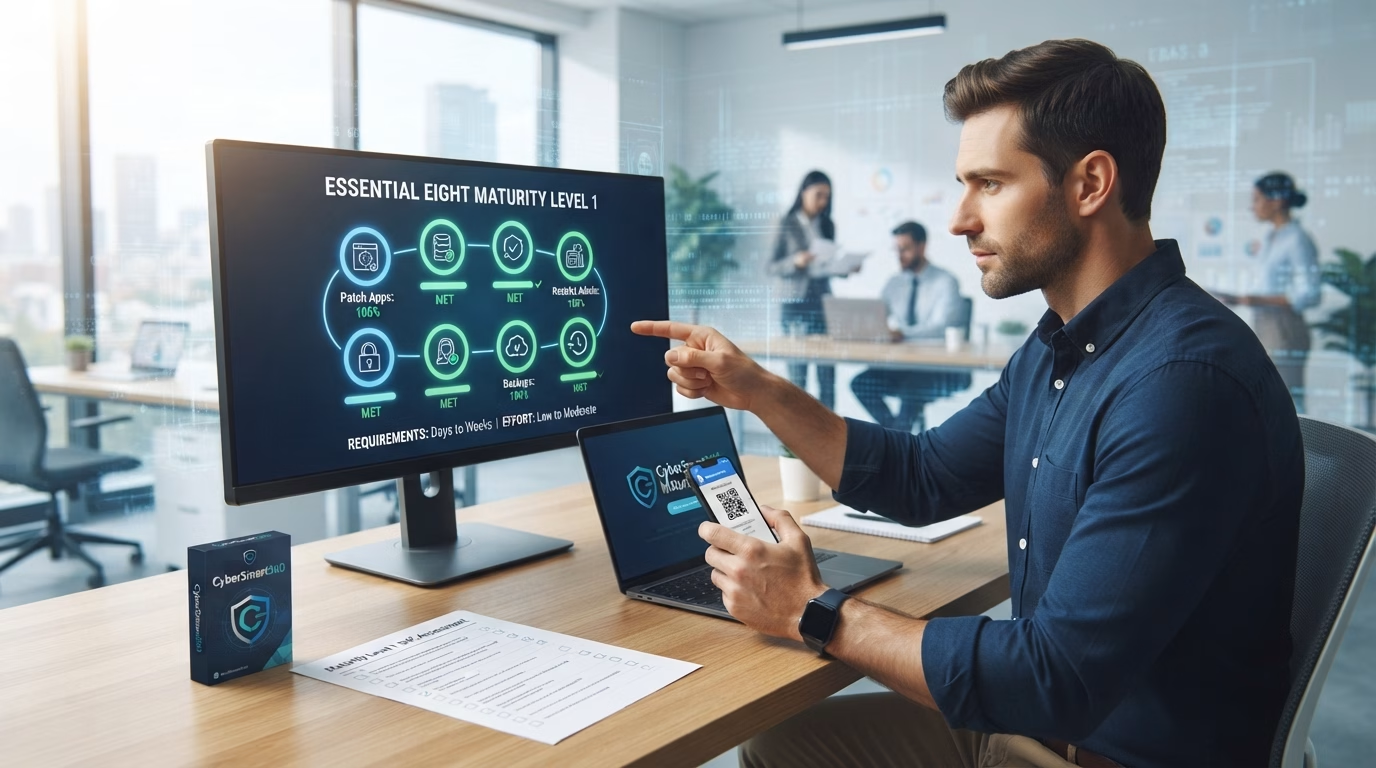
Multi-factor authentication is one of the eight strategies in the ACSC Essential Eight, alongside things like patching and backups.
Getting started: simple, practical steps
You don’t need technical skills. Microsoft 365, Google Workspace and the major banks all offer MFA in their security settings.
Start with your most important accounts:
- your business email
- cloud storage for your files
- online banking.
In each one, open the security or sign-in settings and look for “Two-step verification” or “Multi-factor authentication”. Follow the prompts. You’ll usually link your phone number or install an authenticator app, and you’ll be offered a set of backup codes. Save those somewhere safe.
It usually takes about 20 to 30 minutes and costs nothing. From then on you enter your password, then a code from your phone. It adds a few seconds to each login and makes a stolen password far less useful.
What goes wrong when MFA isn’t managed
Turning MFA on is the start, not the finish. The common problems are:
- a lost or replaced phone locks you out of your own accounts
- backup codes were never saved, so there’s no way back in
- nobody checks that MFA is still switched on until something goes wrong
- staff or contractors get exceptions “just for now” that never get removed.
The other gap is old accounts. An IT contractor who finished up two years ago, with a login that still works and no MFA on it, is an open door. Review who has access a couple of times a year and remove anyone who has moved on.
Phishing and MFA: why your team still needs to stay alert
MFA stops a stolen password. It doesn’t stop someone handing over their code. Criminals know this, so phishing messages now ask for both.
A typical example is a fake event invitation that asks you to sign in with your Google or Microsoft account, then asks for the code that has just appeared on your phone. Give it up and the second lock is gone.
Make three rules clear to everyone in the business:
- Never share an MFA code with anyone, including someone claiming to be IT support or the bank.
- If a sign-in request or code turns up that you didn’t ask for, don’t approve it. Tell someone.
- Check unexpected requests for login details by contacting the sender on a number or address you already know.
Where you have the choice, use an authenticator app rather than text messages. Text messages can be intercepted or redirected; app codes are generated on your phone.
When to go further
For most small businesses, MFA switched on and enforced on every important account is the right place to be. Some will want to go further:
- Hardware security keys. They give strong protection against phishing, but cost money and need someone to manage them. They suit businesses that hold sensitive information.
- Sign-in monitoring. Alerts for logins from unexpected places or repeated failed attempts. This usually needs extra software or help from your IT provider.
Get the basics working smoothly across the whole business before spending money on either.
Keeping MFA working with minimal fuss
MFA isn’t set and forget, but keeping it working is cheap. A few habits cover most of it:
- Make MFA the rule for every login, with no standing exceptions.
- Check now and then that the phone numbers and apps linked to each account are current.
- Update recovery options when someone changes or loses a phone.
- Remove access for former staff and contractors on their last day.
Common questions
Are text message codes good enough, or is an app better?
Text message codes are far better than no MFA. An authenticator app is stronger, because text messages can be intercepted or redirected to another phone.
What if I lose the phone with my authenticator app on it?
Use the backup codes you saved during setup to get back in, then set MFA up again on your new phone. That’s why saving those codes matters.
Does the law require MFA for my small business?
There’s no general legal requirement for private small businesses to use MFA. Insurers, larger customers and tender processes increasingly ask about it, though, and it’s one of the cheapest ways to reduce your risk.
How can my staff spot phishing aimed at MFA codes?
Be suspicious of any message, call or page that asks for a login or a code you weren’t expecting. Check it with the sender using contact details you already have, and never read out or type in a code because someone asked for it.
Can I set this up myself, or do I need an expert?
Most small businesses can switch MFA on for their main accounts themselves. For hardware keys or sign-in monitoring, your IT provider or a cyber security professional can help.
Where to from here
Multi-factor authentication is one control. The ACSC Essential Eight has seven more, and knowing which ones your business is missing is the quickest way to decide what to fix next.
Run your first assessment free for 7 days and see your score. No credit card. Start here →